You launch Waze on your phone, get in the car, and the sound comes from the small speaker of the smartphone instead of the vehicle’s speakers. The frustration is classic, and the solution almost always involves Bluetooth, but not in the way you might think. Because Bluetooth, in the majority of vehicles, is only used to transmit the sound of Waze to the car’s speakers, not to project the map onto the central screen.
Bluetooth and Waze in the car: what the connection really allows
You may have noticed that your car radio displays the name of the current artist, but never the navigation map? That’s normal. Standard Bluetooth transmits audio, not video. Specifically, when you pair your smartphone with your vehicle via Bluetooth, Waze can broadcast voice instructions (“turn right in 300 meters”) and sound alerts (speed camera, reported accident) through the car’s speakers.
The map, however, remains on the phone’s screen. Waze’s official help for Android confirms this usage: Bluetooth is used to play sounds through a connected device, not to duplicate the display. If your goal is to hear voice guidance without handling the phone, this approach works very well and can be set up in a few seconds.
Before trying to connect Waze via Bluetooth in the car, you need to clarify what you expect: just sound, or the full display on the dashboard screen.
Broadcasting Waze sound via Bluetooth: settings on Android and iPhone
The procedure is simple once you know where to look. Let’s start with the most common case.
On Android
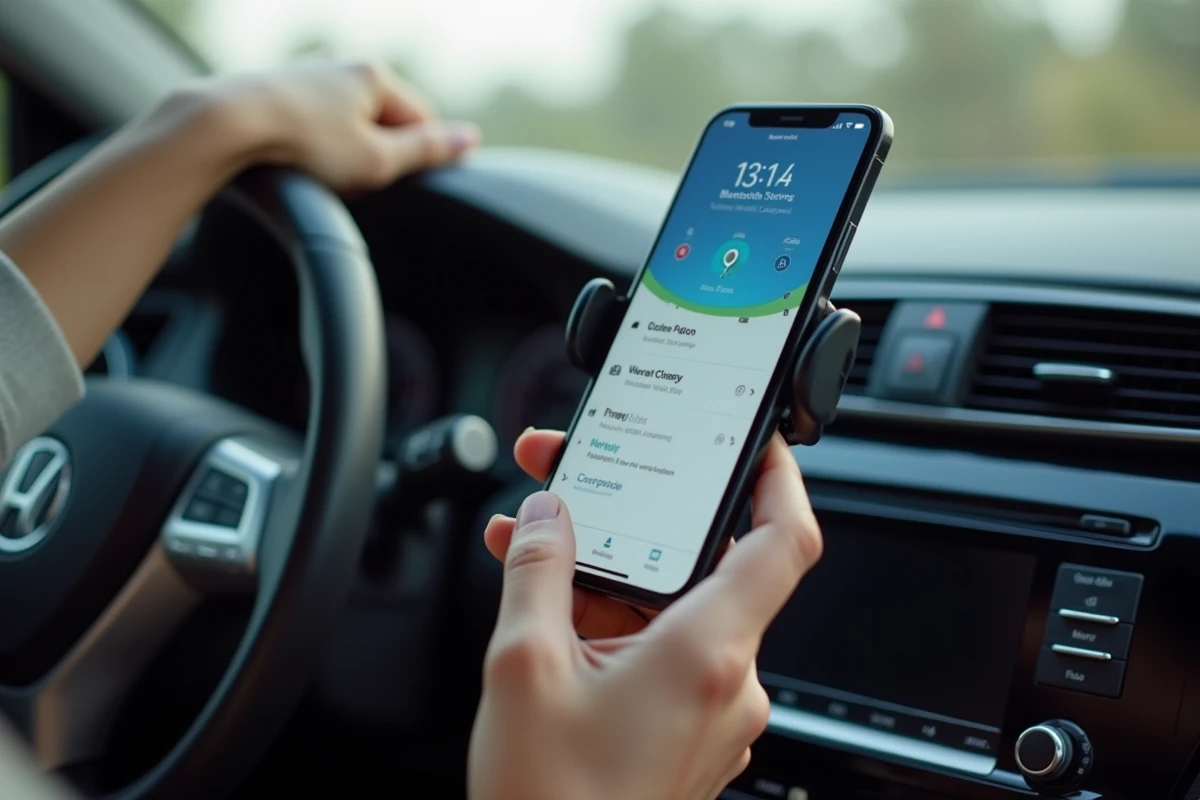
Open Waze, then go to the settings (gear icon). In the “Sound and voice” section, enable the “Play sounds via phone speaker” option and then disable it. This forces Waze to send the audio stream to the paired Bluetooth device instead of the smartphone’s internal speaker.
If no sound comes out despite pairing, check these points:
- The Bluetooth “Media” (A2DP) profile must be enabled in the phone’s Bluetooth settings, not just the “Calls” profile
- The phone’s media volume must be turned up separately from the ringtone volume, as Android manages these streams independently
- The car radio must be set to the Bluetooth source (and not FM or USB) to receive the audio stream
On iPhone
On iOS, the behavior depends on the “Play sound via phone speaker” setting in Waze (Settings > Sound and voice). Disable this option for the sound to switch to Bluetooth. If your car is compatible with CarPlay, Waze will automatically offer to display on the vehicle’s screen once the phone is connected, but this is a different protocol from simple Bluetooth.
Displaying Waze on the vehicle’s screen: why Bluetooth is not enough
Many drivers type “Waze Bluetooth car” hoping to see the map on their central screen. The technical reality is more restrictive. To project the Waze interface onto the car radio screen, you need to use a projection protocol: Android Auto or Apple CarPlay.
These two systems act as a bridge between the smartphone and the built-in screen. Android Auto is available on Android phones, CarPlay on iPhones. In both cases, the vehicle must be compatible, which depends on the year of manufacture and the installed infotainment system.
Wired or wireless connection
Again, a distinction matters. Wired connections (USB cable) remain more stable than wireless for Waze in the car. Wireless Android Auto or CarPlay exists on some recent models, but it requires the vehicle to have a dedicated Wi-Fi module in addition to Bluetooth. Recent practical guides converge on this point: the USB cable avoids random disconnections and display latencies that the wireless mode can cause.
If your car does not support either Android Auto or CarPlay, the alternatives are limited. An aftermarket Android car radio (replacement radio running Android) allows for native installation of Waze. Some adapter boxes can also add CarPlay or Android Auto compatibility to an existing system, but their reliability varies by brand and vehicle model.
Resolving Bluetooth audio cutouts with Waze
The typical scenario: Waze is working, Bluetooth is connected, but the voice instructions cut the music for two seconds and then leave an awkward silence. Or they never come out of the car’s speakers.
These problems often stem from a conflict between audio streams. Waze manages a separate audio channel from that of the music, and some car radios do not know how to switch cleanly between the two. Here are a few concrete suggestions:
- In Waze settings, test the “Play sound via phone speaker” option by enabling and then disabling it, as the change sometimes forces a clean reconnection of the audio stream
- On Android, check that the Waze app is not subject to a battery restriction that cuts sound in the background (Settings > Apps > Waze > Battery > “Not restricted”)
- Restart the Bluetooth on the phone and the car radio: deleting and then re-pairing the device resolves most persistent connection bugs
In some vehicles, the built-in system prioritizes the phone (calls) over media. In this case, Waze tries to send its alerts over the “phone call” channel, which causes music interruptions with each instruction. Forcing Waze to use the media channel in its audio settings often corrects this behavior.
Bluetooth remains the most accessible method to enjoy Waze’s voice guidance without looking at your phone. For display on the screen, the real criterion is not Bluetooth itself, but the vehicle’s compatibility with Android Auto or CarPlay. Before investing in an adapter or a replacement radio, first check what your built-in system supports: the answer is usually found in the vehicle’s manual or on the manufacturer’s website.