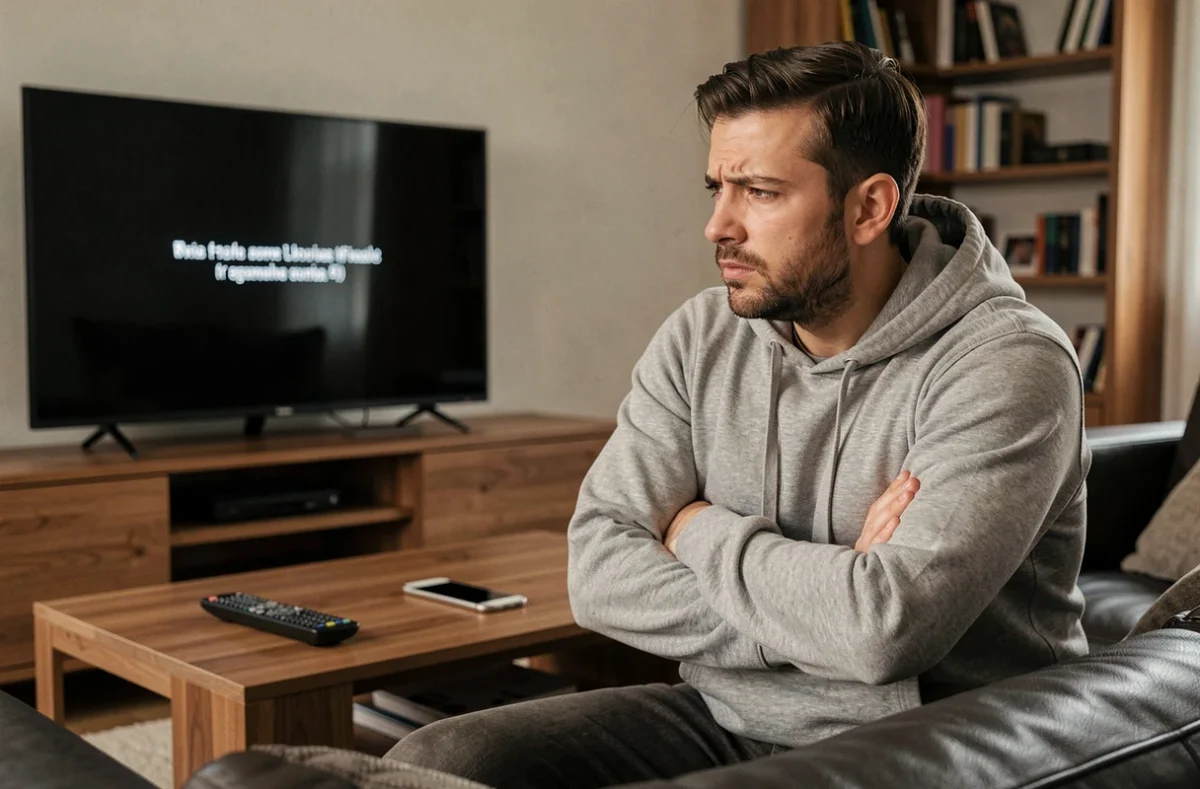
You launch IPTV Smarters Pro, but the screen stays black or frozen on a loading wheel. The usual instinct is to reinstall the app. In most cases, the problem lies elsewhere, and reinstalling won’t fix it.
Three main types of issues account for most freezes: a stream cut off at the server end, an invisible network conflict, or an overloaded app cache. Identifying the right category before changing any settings saves time.
DNS blocking and ISP filtering: the issue the app won’t report
Have you noticed that one channel refuses to load while the others work normally? This symptom rarely points to an app bug. It often indicates a network-level block, upstream from your device.
In France, court rulings have authorized the blocking of services broadcasting sports content without permission. The Paris Judicial Court’s decision of September 18, 2025, confirmed Arcom’s role in notifying internet service providers of new domains to block. In practice, your internet router applies these instructions without notifying you.
For users, the result is a black screen on some streams, but not all. The app displays no explicit error code, misleadingly suggesting a cache or connection issue.
To check whether this is the cause, try the same stream over a mobile connection (4G/5G). If it works over 4G but fails on Wi-Fi, the block is coming from your ISP’s DNS resolver. Changing the DNS settings on your router or device (for example, to Quad9 or Cloudflare) can bypass this filtering. On Android, go to Settings > Network > Private DNS.
A detailed analysis of this type of issue is available on the Android Inside website, with steps tailored to each operating system.
IPTV Smarters Pro connection error: distinguish between server, credentials, and app issues
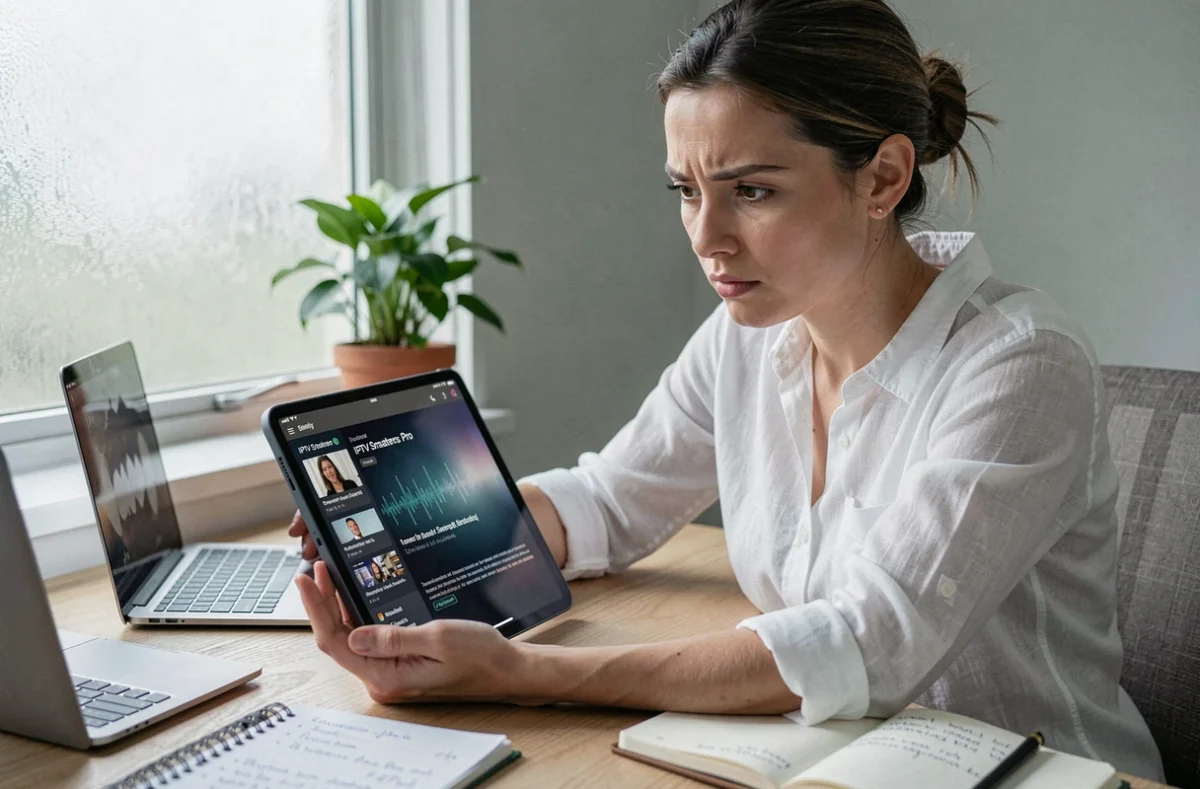
When the app displays “unable to connect” or “invalid credentials,” three different causes can produce the same message. Troubleshooting them in the right order helps you avoid going in circles.
The provider’s server is offline
IPTV Smarters Pro is a player. It doesn’t stream anything by itself. If the source server is down, no local troubleshooting will restore the stream. The quickest test: paste your Xtream Codes URL (the one that starts with http://… and ends with /player_api.php) directly into your device’s browser. If the page returns an error or won’t load, the problem is with the provider.
The credentials are incorrect or expired
An invisible space copied at the end of a password is enough to block authentication. Delete the profile in the app, then manually re-enter each field (host, port, username, password) without copying and pasting. Also check your subscription’s expiration date in the app’s “Account Info” menu.
The app is outdated or corrupted
Versions distributed outside official app stores (APKs downloaded from third-party sites) pose a specific problem. The name “Smarters” is used by several different publishers, and some copies no longer receive updates. Compare the package ID (shown under Settings > Apps) with the one listed in your platform’s official store. If the IDs differ, you’re using an unsupported copy.
Overloaded cache and insufficient memory: symptoms mistaken for a network bug
The app freezes, the channel list takes several minutes to appear, or playback starts and then stops after a few seconds. These behaviors look like connection problems, but they often originate on the device itself.
IPTV Smarters Pro’s cache stores logos, program guides, and channel lists. On a device with limited memory (an older-generation Fire Stick or an entry-level Android box), this cache can take up several hundred megabytes and slow down the entire app.
The steps for clearing the cache vary by system:
- On Android and Android TV: Settings > Apps > IPTV Smarters Pro > Storage > Clear cache. Don’t tap “Clear data” if you want to keep your profiles.
- On Fire Stick: Settings > Applications > Manage Installed Applications > IPTV Smarters Pro > Clear cache. Then restart the device by unplugging it for thirty seconds.
- On iOS: the app doesn’t offer a separate cache-clearing option. The only option is to uninstall and reinstall it, which also deletes saved profiles. Make a note of your credentials first.
If clearing the cache makes no difference, check the available storage space on your device. With less than a few hundred megabytes free, the app can no longer write temporary data and freezes during playback.
Optimize playback to prevent recurring buffering on IPTV Smarters Pro
Buffering (the loading wheel that spins during playback) is different from a connection failure. The stream is coming through, but not fast enough to maintain smooth playback.
Two settings in the app can make a measurable difference. The first is the choice of built-in video player. IPTV Smarters Pro generally offers several options (VLC, ExoPlayer, native). Switching between players can resolve some stuttering, as each engine handles codecs and buffering differently.
The second setting relates to the connection itself. Wi-Fi on the 2.4 GHz band is susceptible to interference (microwaves, Bluetooth devices, thick walls). Switching to the 5 GHz band—or, better yet, connecting the device via Ethernet with a USB adapter—stabilizes the connection and eliminates brief dropouts.
One final point that’s often overlooked: the device’s clock synchronization. If the date and time aren’t set automatically, some encrypted streams may refuse to authenticate. Make sure “Automatic date and time” is enabled in your system settings.
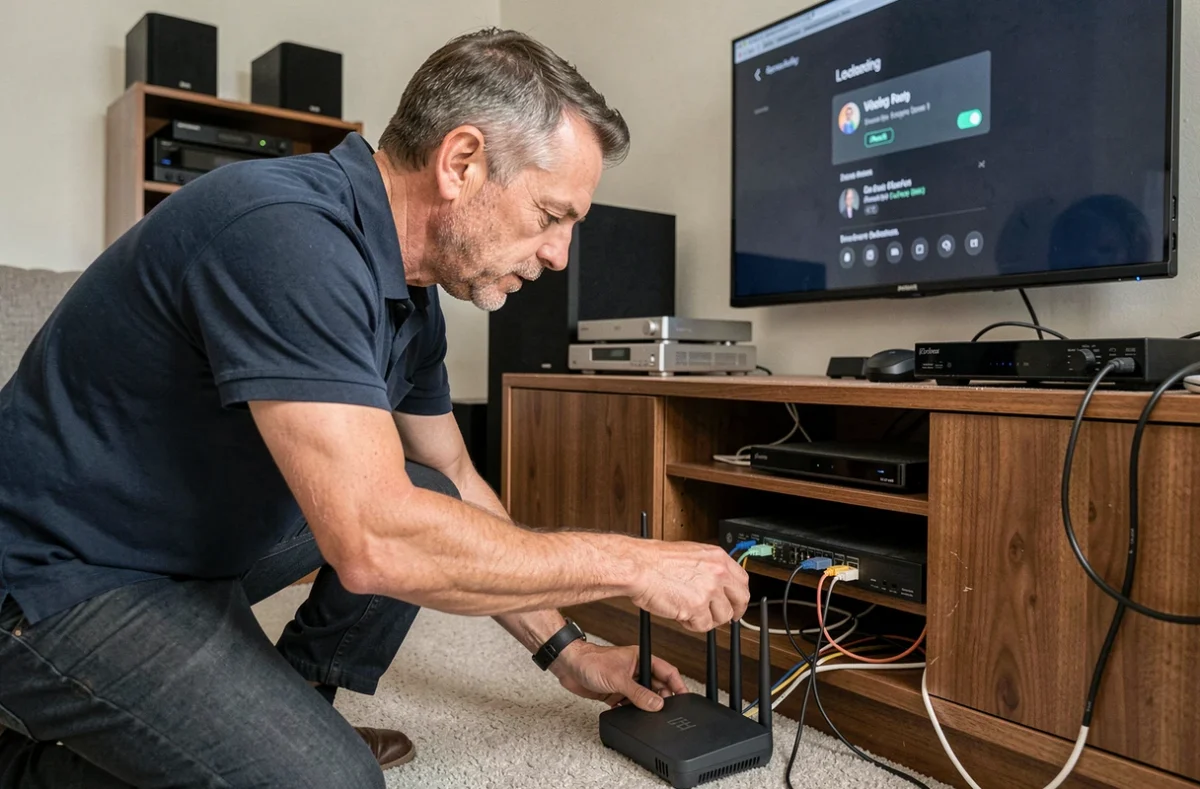
Most IPTV Smarters Pro issues can be fixed without reinstalling the app. A DNS test, a server check, and clearing the cache cover the vast majority of cases. If the problem persists after these three steps, the stream provider—not the app—is almost always to blame.